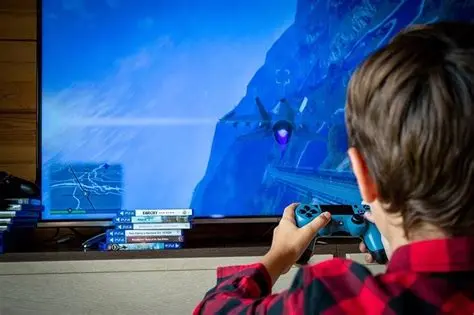
Level Up Your Setup: 10 Rookie Mistakes New Gamers Make
Alright, new gamer, listen up! You've finally got your shiny new rig or console, and those epic adventures are calling your name. But before you dive headfirst into the digital realm, let's have a quick chat about those sneaky little setup blunders that can turn your glorious gaming debut into... well, a bit of a pixelated headache. Don't worry, we've all been there, fumbling with cables or wondering why our headset sounds like a dying robot. So, grab a snack, relax, and let's uncover the top 10 setup mistakes new gamers often make, so you can avoid the grief and get straight to the good stuff!
Overlooking Software Updates and Drivers
Hey there, future gaming legend! You’ve got your shiny new rig, all set up and ready to conquer virtual worlds. But hold your horses for a sec! A common trap many new gamers fall into is thinking that once the hardware is physically connected, you're good to go. Oh, if only it were that simple!
Overlooking crucial software updates and driver installations is like trying to drive a sports car without filling it with the right fuel or tuning it up properly. It just won't perform its best, and you might even hit some frustrating roadblocks that stop you in your tracks before you’ve even started.
Your graphics card, motherboard, and even your mouse and keyboard often come with their own dedicated drivers. These aren't just optional extras; they're the vital pieces of software that allow your hardware to communicate effectively with your operating system and, most importantly, your games.
Running outdated drivers can lead to all sorts of nasty surprises: think low frame rates, annoying glitches, sudden crashes, or even hardware not being recognized at all. Imagine getting into an intense multiplayer match only for your screen to freeze because your GPU driver decided to have a tantrum. Not fun, right?
Beyond hardware drivers, your operating system itself, like Windows, needs regular updates. These updates often include performance enhancements, security patches, and compatibility improvements that are super important for a smooth gaming experience. Neglecting them leaves your system vulnerable to security threats.
It can also prevent you from running the latest games or using new features efficiently. It's a small task that yields huge returns in stability and performance for your gaming adventures. So, before you dive headfirst into your gaming adventures, take a moment to ensure everything is up to date.
This proactive step saves you a lot of headaches down the line and ensures you're getting the absolute best out of your brand-new gaming setup. Think of it as your digital pre-flight check before takeoff. Always download drivers from the official manufacturer websites – NVIDIA, AMD, Intel, etc. – to avoid any dodgy third-party software that might cause more issues than it solves.
| What to Update | Why It's Important | How to Check/Update |
|---|---|---|
| Graphics Drivers (GPU) | Essential for optimal game performance, stability, and access to new game features. | NVIDIA GeForce Experience, AMD Radeon Software, or manufacturer's website. |
| Motherboard Chipset Drivers | Improves system stability, USB performance, and overall hardware communication. | Motherboard manufacturer's support page. |
| Operating System (Windows) | Security patches, performance improvements, and game compatibility. | Windows Settings > Update & Security. |
| Audio Drivers | Ensures clear sound, proper headphone/speaker functionality, and spatial audio support. | Motherboard or sound card manufacturer's website. |
| Peripheral Drivers | Optimizes mice, keyboards, and other accessories for gaming features and reliability. | Peripheral manufacturer's official website. |
Neglecting Proper Cable Management
Alright, you've got your powerful PC, your super-fast monitor, and all the cool peripherals. You've plugged everything in, and now your desk looks like a spaghetti monster just threw up a tangled mess of wires. Sound familiar? Welcome to the club of new gamers who often overlook the incredibly underrated art of cable management.
It might seem like a purely aesthetic concern, just something for the neat freaks, but trust us, it's far more than that for your gaming setup. First off, let’s talk about airflow. If the back of your PC case or your entire desk area is a rat's nest of cables, you're inadvertently blocking crucial ventilation paths.
Your high-performance components, especially your graphics card and CPU, generate a lot of heat when they're working hard during an intense gaming session. Good airflow is essential for dissipating that heat efficiently and keeping your components cool.
A cooler PC runs more stably and can even extend the lifespan of your expensive hardware. Nobody wants their precious GPU to overheat and throttle performance or, even worse, die an untimely death due to poor ventilation, which can easily happen with a huge tangle of cables.
Beyond performance, proper cable management significantly improves the longevity of your cables and ports. Constant tugging, bending, and pressure on cables can lead to frayed wires, loose connections, or even damaged ports over time. Imagine accidentally kicking a loose power cable under your desk during an intense boss fight – instant game over, literally!
Neatly routed cables are less likely to get caught, stepped on, or pulled out, protecting your investments and preventing frustrating interruptions. And yes, there's the aesthetic factor too. A clean, organized gaming space just feels better and can improve your overall mood.
It reduces visual clutter, which can help you focus more on the game and less on the distracting mess around you. Plus, it makes cleaning your setup a breeze. Dust loves to accumulate in tangled wires, and a well-managed setup is much easier to keep spick and span. So grab some zip ties, velcro straps, and maybe a cable sleeve or two, and give your setup the clean look and optimal performance it deserves!
Ignoring Ergonomics and Comfort
So you’ve got your beastly gaming PC running like a dream, your cables are tidier than a marine's bed, and you're ready for those epic all-nighters. But wait! Have you given any thought to how you're actually sitting or interacting with your setup? Many new gamers, especially those used to quick console sessions on the couch, completely overlook the importance of ergonomics and comfort in their PC gaming setup.
This isn't just about feeling cozy; it's about protecting your body from long-term strain and injury, and maximizing your gaming performance and enjoyment. Think about it: you're going to be spending hours glued to that screen, click-clacking away on your keyboard and mouse.
Poor posture, an incorrectly positioned monitor, or an uncomfortable chair can lead to a host of problems. We're talking about annoying wrist pain, stiff necks, aching shoulders, and even persistent back issues. These aren't just minor discomforts; they can severely impact your ability to play, your concentration, and your overall health.
Nobody wants to be sidelined from their favorite game because of carpal tunnel syndrome or chronic back pain! Investing in a good ergonomic gaming chair isn't just a luxury; it's a necessity for anyone serious about long gaming sessions. Look for adjustable lumbar support, armrests, and seat height so you can customize it to fit your body perfectly.
Your monitor should be at eye level, roughly an arm's length away, to prevent neck strain. Position your keyboard and mouse so your wrists are straight and relaxed, not bent or strained. A comfortable mouse pad with wrist support can also make a huge difference, helping you stay comfortable for longer periods.
Taking short breaks to stretch and move around is also incredibly beneficial. Even a five-minute stretch every hour can do wonders for circulation and muscle relief. Remember, your body is your most important piece of gaming hardware, and treating it right means you can keep leveling up in comfort for years to come. Don't let bad habits ruin your gaming journey before it even truly begins. Prioritize your comfort, and your body will thank you in the long run!
Skipping Regular System Maintenance
You've built your dream rig, conquered countless foes, and your setup is looking pristine. But just like a high-performance sports car, your gaming PC needs regular tune-ups and maintenance to keep it purring like a kitten and roaring like a lion. Skipping regular system maintenance is a mistake often made by new gamers who think "if it ain't broke, don't fix it."
However, this approach can lead to gradual performance degradation, system instability, and even shorten the lifespan of your valuable components. Neglecting simple tasks like dusting your components, managing storage, or checking for software conflicts can slowly but surely turn your smooth gaming experience into a choppy, frustrating mess.
Over time, dust bunnies can clog up fans and heatsinks, leading to overheating and thermal throttling. Bloated hard drives can slow down load times and overall system responsiveness. And background apps, leftover files, and corrupted system caches can introduce all sorts of mysterious bugs and crashes, making your games unplayable.
Regular maintenance isn't just about fixing problems; it's about preventing them from happening in the first place. It ensures your system remains optimized, secure, and ready to tackle the most demanding games without breaking a sweat. Think of it as giving your PC some much-needed TLC to keep it in peak condition. Let's tackle some common questions new gamers have about keeping their systems in tip-top shape.
Q1: How often should I clean my PC from dust?
A: Ideally, you should give your PC a good internal dusting every 3-6 months. If you live in a particularly dusty environment or have pets, you might want to do it more frequently, perhaps every 1-2 months to keep things spotless.
Q2: What tools do I need for cleaning my PC?
A: You'll typically need a can of compressed air, some microfiber cloths, and maybe a small brush or cotton swabs for tight spots. An anti-static wrist strap is also a good idea to protect components from static discharge.
Q3: Is it okay to use a vacuum cleaner to clean inside my PC?
A: No, absolutely not! Vacuum cleaners can generate static electricity, which can severely damage delicate electronic components. Always use compressed air or specialized PC cleaning tools designed for electronics.
Q4: How do I manage my storage space effectively?
A: Regularly uninstall games and programs you no longer play or use. Move large files like videos or photos to external hard drives. Use Windows' Disk Cleanup tool and consider running defragmentation (for HDDs) or TRIM (for SSDs) if your OS doesn't do it automatically.
Q5: Should I regularly defragment my SSD?
A: No, defragmenting an SSD is generally not recommended and can actually shorten its lifespan. SSDs work differently from HDDs, and Windows usually handles TRIM commands automatically for SSDs, which helps optimize performance without manual intervention.
Q6: How often should I update my drivers and OS?
A: Graphics drivers are often updated with new game releases, so check every month or whenever a new major game comes out. OS updates should generally be installed as they become available, especially security patches.
Q7: What about antivirus software? Is it really necessary for gamers?
A: Yes, absolutely! Even if you're careful, online threats are everywhere. Good antivirus software protects your system from malware, ransomware, and viruses that can cripple your performance or steal your valuable data.
Q8: How do I monitor my PC's temperatures?
A: You can use free software like HWMonitor, MSI Afterburner, or NZXT CAM to keep an eye on your CPU and GPU temperatures during gaming. High temperatures can indicate a cooling issue that needs addressing promptly.
Q9: When should I consider replacing thermal paste?
A: For most users, thermal paste on the CPU cooler doesn't need to be replaced for several years (3-5 years typically). If you notice consistently high CPU temperatures despite proper cleaning, it might be time to reapply it for better heat transfer.
Q10: Are there any tools to clean up temporary files and junk?
A: Yes, Windows has a built-in "Disk Cleanup" tool. Third-party options like CCleaner (use with caution and download from official sources) can also help, but built-in tools are usually sufficient and safer for most users.
Q11: What is bloatware, and how do I remove it?
A: Bloatware refers to pre-installed software that comes with your PC or new applications that you don't need or want. You can usually uninstall them through Windows Settings > Apps, or use dedicated uninstaller tools if they're stubborn.
Q12: How do I check for background processes hogging resources?
A: Open Task Manager (Ctrl+Shift+Esc) and go to the "Processes" tab. You can sort by CPU, Memory, or Disk usage to identify resource-hungry applications and close them if they are not essential for your current tasks.
Q13: Should I regularly restart my PC?
A: Yes! A regular restart (not just shutting down, as Windows 10/11 Fast Startup can mimic a hibernation state) clears RAM, closes background processes, and refreshes your system, often resolving minor glitches. Once a day or every couple of days is ideal for optimal performance.
Q14: Are game launchers like Steam, Epic Games, etc., considered maintenance?
A: While not strictly maintenance, keeping your game launchers updated ensures you have the latest features and bug fixes. Also, managing your game library through them helps keep track of installed games and updates.
Q15: What's the biggest mistake a new gamer can make regarding maintenance?
A: The biggest mistake is assuming your PC is a "set it and forget it" device. Just like any high-performance machine, it requires periodic attention to stay in top shape. Neglecting it leads to a poorer experience and potential hardware issues, so stay vigilant!
Underestimating Internet Connection Quality
You’ve optimized your PC, tamed your cables, perfected your posture, and even cleaned out the dust bunnies. You're ready for glorious online multiplayer action! But then you load into your favorite game, and suddenly you're teleporting around, shots aren't registering, and everything feels laggy and unresponsive. What gives?
A common oversight for many new gamers is severely underestimating the importance of a stable, high-quality internet connection. It’s not just about raw speed; it’s about consistency, low latency, and reliability, which are all crucial for a smooth online experience.
Many new gamers assume that just having "fast internet" is enough. While download and upload speeds are definitely important, especially for downloading huge game updates or streaming, for actual gameplay, latency (often called "ping") is king.
Latency is the time it takes for data to travel from your computer to the game server and back again. High ping means a noticeable delay between your actions and what happens in the game, leading to frustrating lag, rubber-banding, and a severely degraded competitive edge.
Imagine trying to land a headshot when your target appears to skip across the screen! Furthermore, your connection's stability matters just as much as its speed and latency. Frequent disconnections or intermittent packet loss can turn even a fast connection into a nightmare for online gaming.
This can be caused by various factors, from a shoddy Wi-Fi signal to an overloaded home network, or even issues with your internet service provider (ISP). You might have a blazing fast 1GBps connection, but if it drops out every five minutes, it's useless for a ranked match and will just lead to frustration.
For the best online gaming experience, always prioritize a wired Ethernet connection over Wi-Fi whenever possible. Ethernet provides a much more stable and faster connection with significantly lower latency, giving you that competitive edge.
If Wi-Fi is your only option, ensure your router is modern, positioned optimally, and consider a Wi-Fi 6 or 6E adapter for your PC to maximize its potential. Also, close any unnecessary background apps or streaming services that might be hogging bandwidth. Your internet connection is the lifeline of your online gaming, so don't let it be the weak link in your meticulously crafted setup!
Final Boss Down!
Alright, that's the whole rundown! Hopefully, you've snagged a few solid pointers to help you dodge those common setup pitfalls. No more weird audio, sticky keyboards, or sore wrists for you, champ! Seriously, a massive thanks for hangin' with us till the very end. We're always cookin' up new articles and guides to help you game smarter and have more fun, so don't be a stranger! Pop back in whenever you're lookin' for more gaming wisdom. Until then, keep those frames high and those controllers charged!