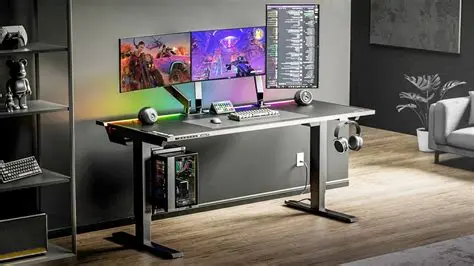
Top 34 Chill FPS Desk Layouts: Game On, Relax Harder
Alright, fellow headshot enthusiasts and clutch kings! You know that feeling when your aim just isn't quite there, or your wrist is cramping mid-spray? Sometimes, it's not you, it's your setup. A messy, unoptimized, or just plain awkward gaming desk layout can be the silent killer of your K/D ratio. But fear not, because we're about to dive deep into some killer setups that can transform your battle station, boost your ergonomics, and maybe, just maybe, help you land those crispy flicks more consistently. Get ready to tweak, organize, and dominate!
Optimizing Monitor Placement and Settings for FPS Dominance
Alright, so you've got your sweet new gaming desk, but where does that glorious monitor go? It's not just about slapping it down anywhere; for FPS gaming, precision is key. Your monitor placement and settings can seriously impact your reaction time and overall performance.
Let's get this right. First off, eye level is the golden rule. The top third of your monitor should ideally be at your eye level when you're sitting comfortably. This helps prevent neck strain during those intense, hours-long gaming sessions. You don't want to be craning your neck up or down, trust me!
Next up, distance. You're not trying to hug your monitor, nor are you sitting across the room. A good rule of thumb is an arm's length away. For most people, that's about 20-30 inches (50-75 cm). This distance allows your eyes to take in the whole screen without excessive movement, crucial for spotting enemies in your peripheral vision.
Consider your field of view too. If you're running a single monitor, make sure it's centered directly in front of you. For multi-monitor setups, particularly if you use them for gaming, the main gaming monitor should be centered. The others can flank it, angled slightly towards you for an immersive experience.
Glare is a silent killer of good performance. Position your desk and monitor to avoid direct sunlight or harsh overhead lights reflecting off the screen. If you can't avoid it, invest in some good blinds or a monitor hood. It's a small detail that makes a huge difference.
Now, about those settings! Don't just plug and play. Dive into your monitor's OSD (On-Screen Display) menu. Look for things like refresh rate and response time. Make sure your refresh rate is set to its maximum (e.g., 144Hz, 240Hz) in both your monitor's settings and your GPU control panel.
Lowering response time, often called "overdrive" or "response time compensation," can reduce ghosting. Be careful not to overdo it, though, as too much can introduce inverse ghosting or overshoot. A little tweaking can go a long way.
Finally, adjust brightness and contrast to your room's lighting. Too bright can cause eye fatigue, while too dim might make it hard to spot details in darker game areas. It's a balancing act to find that sweet spot for visual comfort and competitive advantage.
It's amazing how much difference these small adjustments can make in your gameplay. Take the time to fine-tune everything, and you'll be seeing heads pop in no time. Your eyes, neck, and kill-death ratio will thank you for it!
Here’s a quick glance at some monitor essentials:
| Aspect | Recommendation for FPS Gamers | Why it Matters |
|---|---|---|
| Refresh Rate | 144Hz or higher (240Hz, 360Hz) | Smoother visuals, reduced input lag, easier target tracking. |
| Response Time | 1ms GTG (Gray-to-Gray) | Minimizes motion blur and ghosting, leading to clearer images during fast movement. |
| Resolution | 1080p for highest FPS, 1440p for balance | Higher resolution needs more GPU power, potentially lowering FPS. 1080p is common for competitive play. |
| Panel Type | TN or Fast IPS | TN panels offer fastest response times. Fast IPS provides better colors with competitive speeds. |
| Adaptive Sync | G-Sync or FreeSync compatible | Eliminates screen tearing and stuttering, creating a much smoother gameplay experience. |
| Viewing Distance | Arm's length (20-30 inches) | Allows full screen visibility without excessive eye or head movement. |
| Ergonomics | Eye-level top third of screen | Prevents neck strain and promotes long-term comfort during play. |
Ergonomics Masterclass: Comfort for Peak Performance
Alright, let's talk about comfort, because if you're not comfortable, your performance will suffer, simple as that. Ergonomics isn't just a fancy word; it's about setting up your gaming space so your body feels good, even after marathon sessions. This means fewer aches, less fatigue, and ultimately, better gaming.
First up, your chair. This is arguably the most important piece of your ergonomic puzzle. Invest in a good gaming chair or, better yet, a high-quality office chair designed for long hours. Look for adjustable lumbar support, armrests that can go up, down, and swivel, and a good headrest.
Your feet should be flat on the floor, or supported by a footrest if your desk is on the higher side. Your knees should be at roughly a 90-degree angle. This helps with circulation and prevents lower back strain. Don't underestimate the power of proper foot placement!
Next, your desk height. This often goes hand-in-hand with your chair. When you're sitting with your elbows bent at about a 90-degree angle, your forearms should be parallel to the floor, and your hands should comfortably rest on your keyboard and mouse. Many adjustable desks can help you dial this in perfectly.
If your desk isn't adjustable, you might need to adjust your chair height and use a footrest. The goal is to avoid shrugging your shoulders or reaching too far for your peripherals. Keep those shoulders relaxed, folks!
Monitor placement, as we discussed, is crucial too. Eye level top third, remember? This keeps your neck in a neutral position, avoiding that painful crick in your neck that can build up over time. Every small adjustment adds up to a huge difference.
Armrests on your chair are there for a reason! Use them to support your forearms and reduce pressure on your wrists. If your armrests are too low or too high, they won't do their job effectively. Take the time to adjust them properly.
Consider wrist rests for your keyboard and mouse, but use them wisely. They're meant to support your wrist during breaks, not during active typing or mousing. Keeping your wrists straight and floating slightly above the desk is generally better when actively gaming.
Taking regular breaks is also a massive part of an ergonomic strategy. Even a five-minute stretch or walk around every hour can do wonders. It gets the blood flowing, rests your eyes, and helps reset your posture. Your body will thank you in the long run.
Ultimately, ergonomics is about creating a setup that works with your body, not against it. It's an investment in your health and your gaming longevity. So, take a moment, check your posture, adjust those settings, and game on in comfort!
Cable Management: Taming the Gaming Beast
Let's be real, a tangled mess of cables under your desk looks terrible and can actually be a hazard. But beyond aesthetics, good cable management for an FPS gaming setup is about more than just looking neat. It's about functionality, safety, and even improving your gaming environment. Nobody wants to accidentally snag their mouse cable mid-clutch!
First off, planning is everything. Before you even start zip-tying, map out your connections. Where does your monitor cable go? How about your keyboard, mouse, and headset? Power cables for your PC, monitors, and peripherals? Knowing where everything needs to route will make the process much smoother.
Start with the essentials, like power and display cables. Group them loosely first, using temporary ties or Velcro straps. You want to make sure you have enough slack for any future adjustments, but not so much that it creates a new tangle. Think "controlled chaos" before "Zen garden."
Invest in some good cable management tools. Velcro ties are your best friend because they're reusable and adjustable. Cable sleeves or wraps can bundle multiple cables together for a clean look, especially for those running down a monitor arm or desk leg.
Cable trays or baskets that mount underneath your desk are game-changers. These keep power bricks and excess cable length completely out of sight and off the floor. No more dusty cable spaghetti monsters lurking in the shadows! This also helps protect them from accidental kicks.
Adhesive cable clips or tie mounts can be incredibly useful for routing individual cables along the underside of your desk or along desk legs. Use them to guide cables precisely where you want them, preventing them from dangling or interfering with your legs.
Consider a surge protector or power strip with multiple outlets. Mount this directly to the underside of your desk or within a cable tray. This centralizes your power connections, making it easier to manage and helping protect your gear from power spikes.
For your mouse, especially if it's wired, a mouse bungee is a must-have. It lifts the cable off your desk, preventing snags and creating a wireless-like feel without the worry of battery life. It's a small but significant upgrade for any serious FPS player.
Don't forget about headset cables! If your headset is wired, try routing its cable along the back of your desk or through a monitor stand. Many modern headsets also offer a good length, so you might be able to get it out of the way easily.
And remember, leave a little slack. While you want things tidy, you don't want cables pulled taut. This can put stress on connectors and potentially damage them over time. A small service loop for each cable is a good idea.
A clean setup isn't just about looking good for your stream or YouTube videos; it minimizes distractions and maximizes your focus. So, take some time to tame that cable beast, and enjoy a cleaner, more efficient, and safer gaming haven. Your future self (and your gaming rig) will thank you!
Peripheral Power-Up: Mouse, Keyboard, and Headset Setup for FPS
Your mouse, keyboard, and headset are your primary tools for domination in FPS games. Getting their setup just right isn't just about aesthetics; it's about optimizing every millisecond of interaction with your game. Let's dive into how to power up your peripherals for peak performance.
Starting with your mouse, its placement is critical. You want a large, unobstructed area for your mousepad and mouse. For FPS games, many pros use low DPI settings, which means you'll be moving your mouse across a much larger surface area to aim. Don't skimp on a good, large mousepad.
Position your mouse so your arm can move freely from the shoulder or elbow, rather than just from the wrist. This reduces wrist strain and allows for more precise, sweeping movements. Experiment with angles; some players angle their keyboard to free up more space for their mouse arm.
Speaking of keyboards, placement often depends on your hand size and preferred arm position. Most FPS players keep their keyboard centered relative to their body or slightly offset to the left, which opens up maximum space for mouse movement to the right.
Consider the angle of your keyboard too. Some prefer it completely flat, others like a slight tilt using the built-in feet. Experiment to find what feels most natural and comfortable for your wrists and fingers during intense gaming sessions. A compact tenkeyless (TKL) or 60% keyboard can be a huge space saver, giving you even more room for mouse swiping.
Your headset is your window to the game's audio cues – footsteps, gunshots, and callouts. Make sure its cable (if wired) is routed cleanly and isn't interfering with your mouse or keyboard. A desk-mounted headset stand or hook is a fantastic addition to keep it organized and within easy reach.
Wireless headsets offer ultimate freedom from cables, but remember to keep them charged! Ensure your charging dock or cable is accessible. For both wired and wireless, comfort is paramount. Adjust the headband and earcups for a snug, but not tight, fit that can be worn for hours.
Microphone placement is also key for clear communication with your teammates. Position it close enough to your mouth to pick up your voice clearly, but not so close that you're breathing directly into it, causing annoying plosives. Many headsets have adjustable boom mics, so take advantage of that flexibility.
Think about the software settings for your peripherals too. Calibrate your mouse sensor for your specific mousepad, adjust DPI and polling rate, and customize keyboard macros if your game supports them. Fine-tune your headset's equalizer settings to emphasize those crucial in-game sounds.
Every peripheral works together as a system. The goal is to create a seamless extension of your body. When your mouse, keyboard, and headset are perfectly tuned and placed, you'll feel more connected to the game, leading to better focus and, hopefully, more victories!
FPS Gaming Desk Layout FAQs
Alright, let's wrap things up with some common questions that pop up when you're trying to nail that perfect FPS gaming desk setup. We've covered a lot, but sometimes you just need quick answers to specific head-scratchers.
Q1: What's the ideal desk height for FPS gaming?
A: The ideal height allows your arms to be at a 90-degree angle at the elbow when your hands are on your keyboard and mouse, with your feet flat on the floor. This usually means an adjustable desk or a good ergonomic chair is essential.
Q2: Should I use one monitor or multiple for FPS games?
A: For competitive FPS gaming, a single, high-refresh-rate monitor is generally recommended. It keeps your focus central and avoids the distractions or performance hit of multiple displays during gameplay. Use secondary monitors for streams or chat.
Q3: How important is monitor refresh rate for FPS?
A: Extremely important! Higher refresh rates (144Hz, 240Hz, 360Hz) provide a much smoother visual experience, reducing motion blur and making targets easier to track. It gives you a competitive edge.
Q4: Wired vs. wireless mouse for FPS, which is better?
A: Modern wireless gaming mice are incredibly good, with virtually no perceivable lag. However, many pros still prefer wired for zero latency concerns and no battery worries. It often comes down to personal preference and comfort.
Q5: Is a large mousepad really necessary?
A: Yes, absolutely! Many FPS gamers use low DPI settings for greater precision, which requires a lot of mouse movement. A large mousepad ensures you have ample space for those big swipes without lifting your mouse.
Q6: How do I deal with glare on my monitor?
A: Position your desk to avoid direct light sources like windows or overhead lights. If that's not possible, use blinds, curtains, or consider a monitor hood. Anti-glare coatings on monitors also help.
Q7: What's the best keyboard type for FPS gaming?
A: Mechanical keyboards are favored for their tactile feedback and durability. Switch types like Cherry MX Red or Speed switches are popular for FPS due to their linear, fast actuation.
Q8: Should I angle my keyboard?
A: Many FPS players angle their keyboard slightly to give more room for mouse movement, particularly if they game with a lower DPI. Experiment with it to see what feels most natural for you and frees up space.
Q9: How can I improve my posture while gaming?
A: Invest in an ergonomic chair, adjust your desk and monitor height, keep your feet flat, and take regular breaks to stretch. Consciously reminding yourself to sit straight helps a lot.
Q10: Are standing desks good for FPS gamers?
A: Standing desks can be great for overall health, promoting movement and reducing sedentary time. For FPS, you might alternate between sitting and standing, but ensure your monitor and peripheral heights are correctly adjusted for both positions.
Q11: What's a mouse bungee, and do I need one?
A: A mouse bungee is a device that holds your wired mouse cable, keeping it elevated and preventing it from snagging or dragging on your desk. It gives a near-wireless feel to a wired mouse and is highly recommended for FPS.
Q12: How far should my monitor be from my eyes?
A: Generally, an arm's length away (around 20-30 inches or 50-75 cm) is a good starting point. This allows you to take in the entire screen comfortably without excessive eye or head movement.
Q13: Is cable management just for looks?
A: Not at all! Good cable management improves airflow, prevents cables from getting snagged or damaged, reduces tripping hazards, and creates a much cleaner, less distracting gaming environment. It's functional and aesthetic.
Q14: Should I use wrist rests for my keyboard and mouse?
A: Wrist rests are good for supporting your wrists during breaks, but when actively typing or mousing, your wrists should ideally be straight and hovering slightly above the rest. Using them incorrectly can put pressure on your carpal tunnel.
Q15: How often should I take breaks during long gaming sessions?
A: It's highly recommended to take a short break (5-10 minutes) every hour. Stand up, stretch, walk around, and rest your eyes. This prevents fatigue, improves circulation, and helps maintain focus.
Until Next Time, Gamers!
So, there you have it, folks! Hopefully, these top-tier desk layouts have sparked some serious inspiration for upgrading your own command center. Remember, a killer setup isn't just about looking slick; it's about comfort, efficiency, and ultimately, dominating those lobbies. A huge thank you for hanging out with us and diving deep into the world of FPS gaming ergonomics. We truly appreciate you taking the time to read through our picks. Keep those crosshairs steady, stay hydrated, and don't be a stranger! We've got plenty more guides, reviews, and awesome gaming content coming your way. Until then, happy fragging!